Device Enrolment via Group Policy
This guide was migrated from the previous website and may refer to older versions of Disco ICT.
Use Group Policy to run the Disco Client Bootstrapper on domain-joined Windows devices. This can help enrol existing devices or apply updated device profiles and certificates.
This method assumes each device can access both the bootstrapper on a network share and the Disco server. If devices need wireless configuration before they can reach the network, arrange that separately.
Before you begin
- Confirm the target devices can connect to the Disco server.
- Download the Disco Client Bootstrapper from Configuration > Enrolment in Disco ICT.
- Place the bootstrapper in a domain-accessible network share. Grant the target computer accounts (or a group containing them) read and execute access to both the share and its underlying folder.
- Use a UNC path to the executable. Do not use a mapped drive, which may not be available when the task runs as the local system account.
- Create a test Organizational Unit (OU) and test the policy with a small number of devices before a wider rollout.
Screenshot placeholder — Disco ICT enrolment download: Capture the current Configuration > Enrolment page showing where an administrator downloads the Disco Client Bootstrapper. Use a test environment and exclude tenant-specific or sensitive information. Do not launch the downloaded application.
Create the Group Policy Object
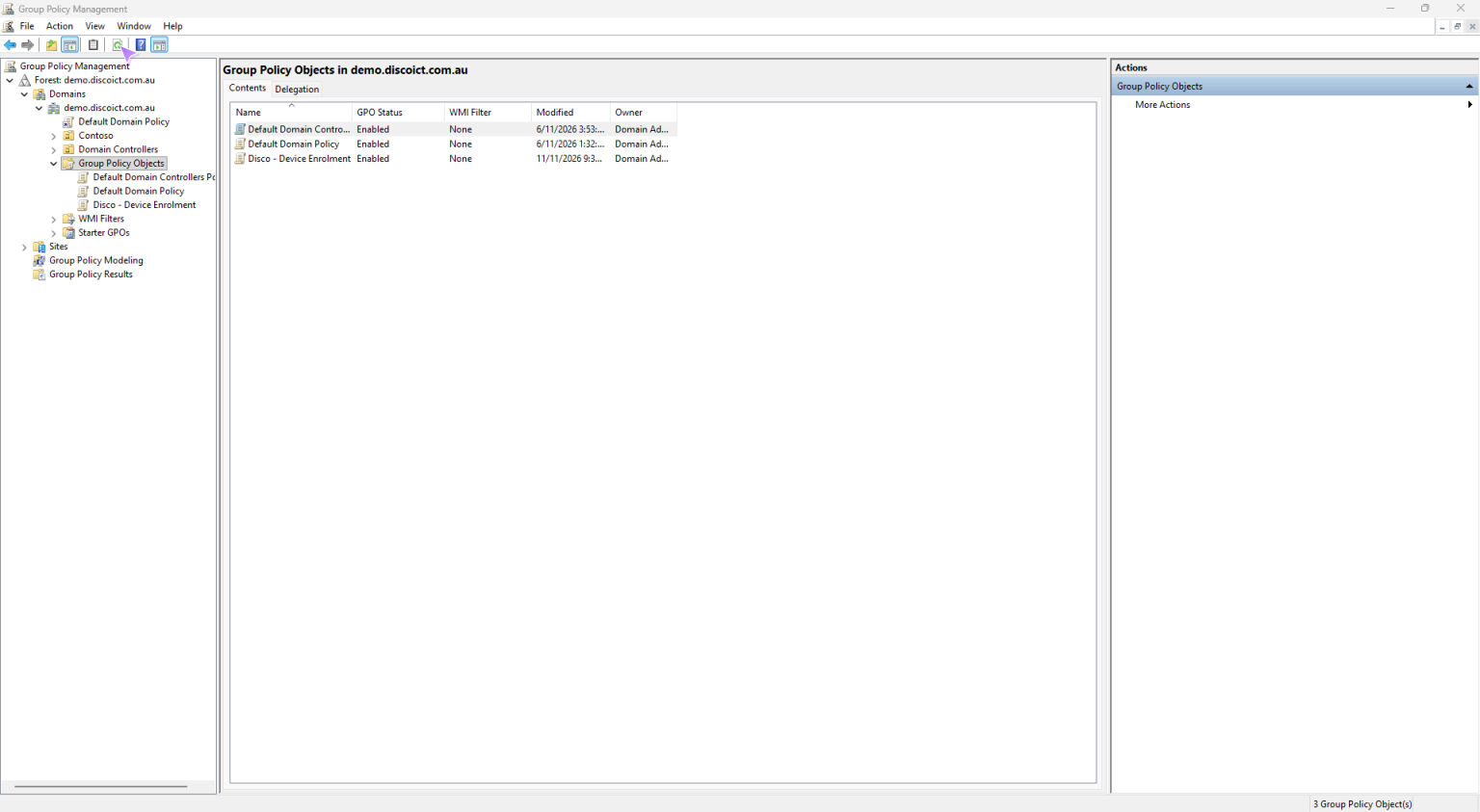
In Group Policy Management, create a dedicated Group Policy Object (GPO), for example Disco - Device Enrolment. Keeping this separate from existing policies makes it easier to test, troubleshoot, and disable the deployment.
The example shows the new GPO in the domain’s Group Policy Objects list. It is not linked to an OU yet.
Add an immediate scheduled task
Edit the GPO and go to Computer Configuration > Preferences > Control Panel Settings > Scheduled Tasks. Create a new Immediate Task (At least Windows 7).
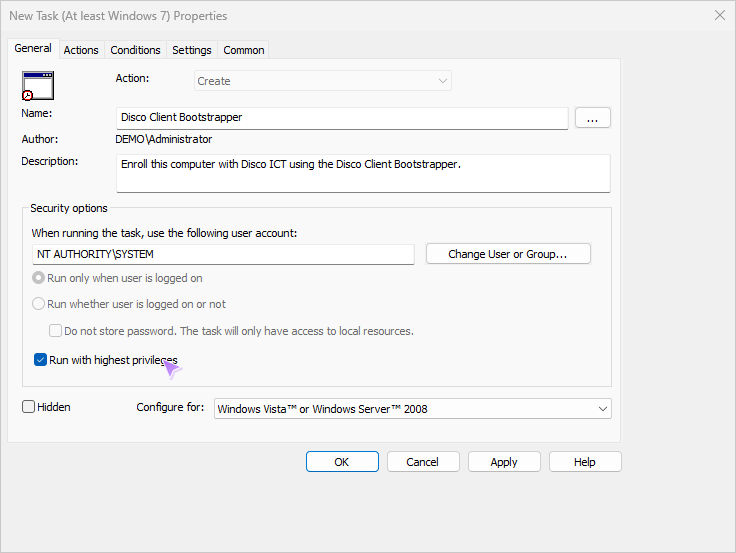
On the General tab:
- Give the task a descriptive name, such as Disco Client Bootstrapper.
- Set the user account to
NT AUTHORITY\SYSTEM. - Select Run with highest privileges.
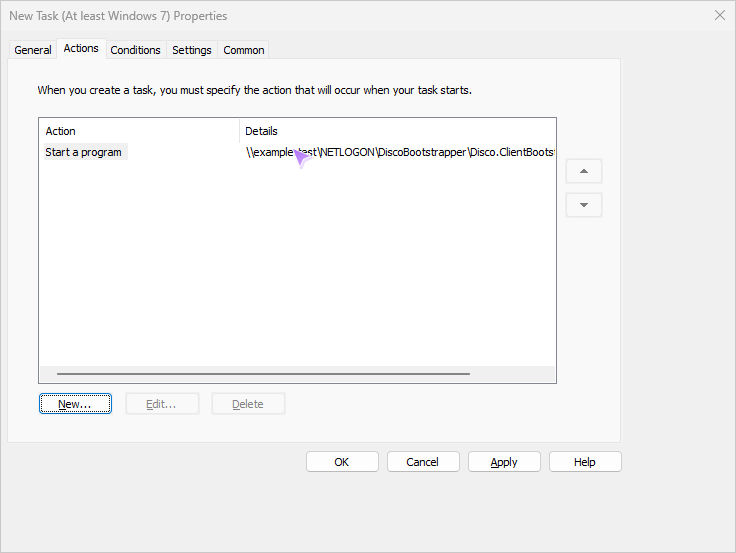
On the Actions tab, add a Start a program action. Set Program/script to the full UNC path of the bootstrapper in the share, for example:
\\<domain>\NETLOGON\DiscoBootstrapper\Disco.ClientBootstrapper.exeReplace <domain> and the folder path with the values for your environment. Leave the arguments empty unless your Disco ICT administrator has provided specific arguments for your deployment.
Choose when the task runs
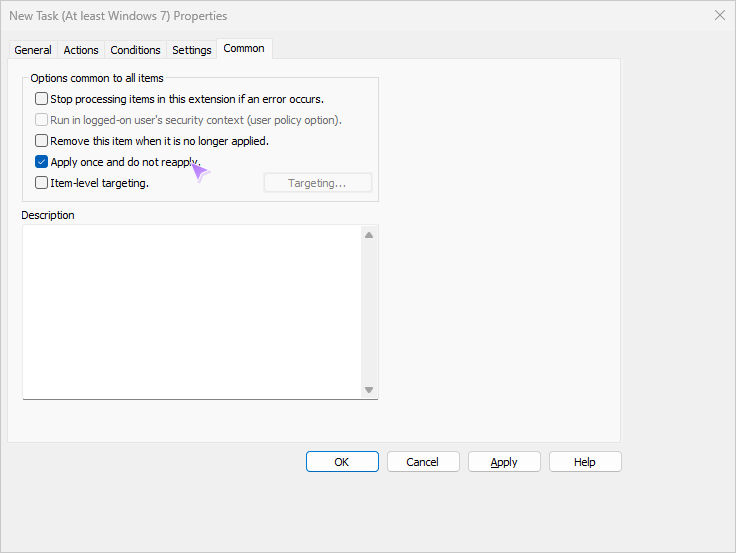
On the Common tab, select Apply once and do not reapply if the bootstrapper should run only once for each device. If a device cannot reach the share or Disco server when the task first runs, it may not be retried automatically. Plan how failed enrolments will be retriggered before enabling this option.
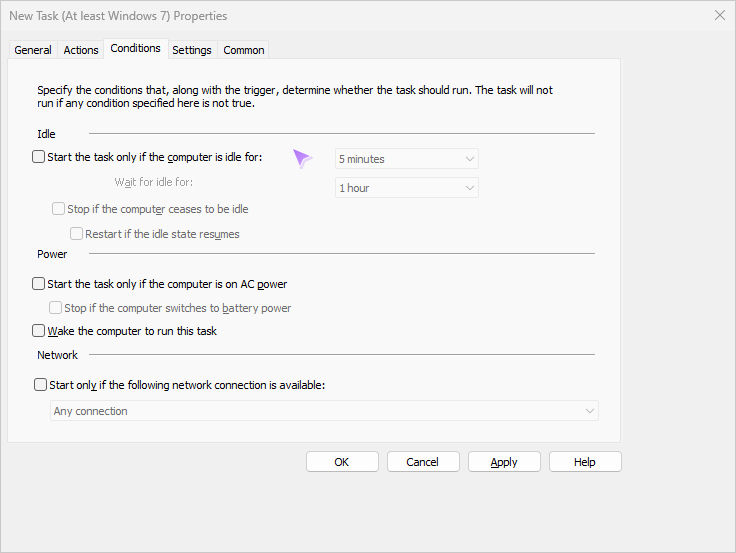
Review the task’s Conditions tab and set its idle and power requirements to match your organization’s policies. For laptops, note whether Start the task only if the computer is on AC power is selected; devices on battery may otherwise wait until they are plugged in.
The example leaves the idle, power, and network conditions clear. Change them to match your organization’s requirements; for example, requiring AC power can delay enrolment on laptops.
Link and test the policy
Close the Group Policy Management Editor, then link the GPO to the test OU containing the target computer accounts. Confirm that the computers have permission to read and execute the bootstrapper from the share and that Group Policy applies the scheduled-task preference.
After testing the deployment and its recovery process, link the GPO to the OUs for the intended devices. Review the scope carefully before expanding the rollout.
Screenshot placeholder — GPO link: Capture Group Policy Management showing the dedicated GPO linked to a test OU. Use a fictional domain and OU names, and ensure no organization-specific information is visible.