A Warranty Repair
A student reports that keys on their laptop are not responding. The technician needs to confirm the fault, arrange a warranty repair and keep the student informed. Disco ICT keeps the job, device and supporting information together while the work moves forward.
1. Start with the device
Find the device or the person using it and choose Create Job. Select Hardware - Warranty, choose the relevant sub-types and add the initial comments. If the device has been taken for repair, record that it is held. Starting from the device brings its details and assigned user into the job.
The job shows the device model and warranty information alongside the user, status and work history. Comments and attachments give the team a place to record diagnosis, photos, supplier correspondence and progress.
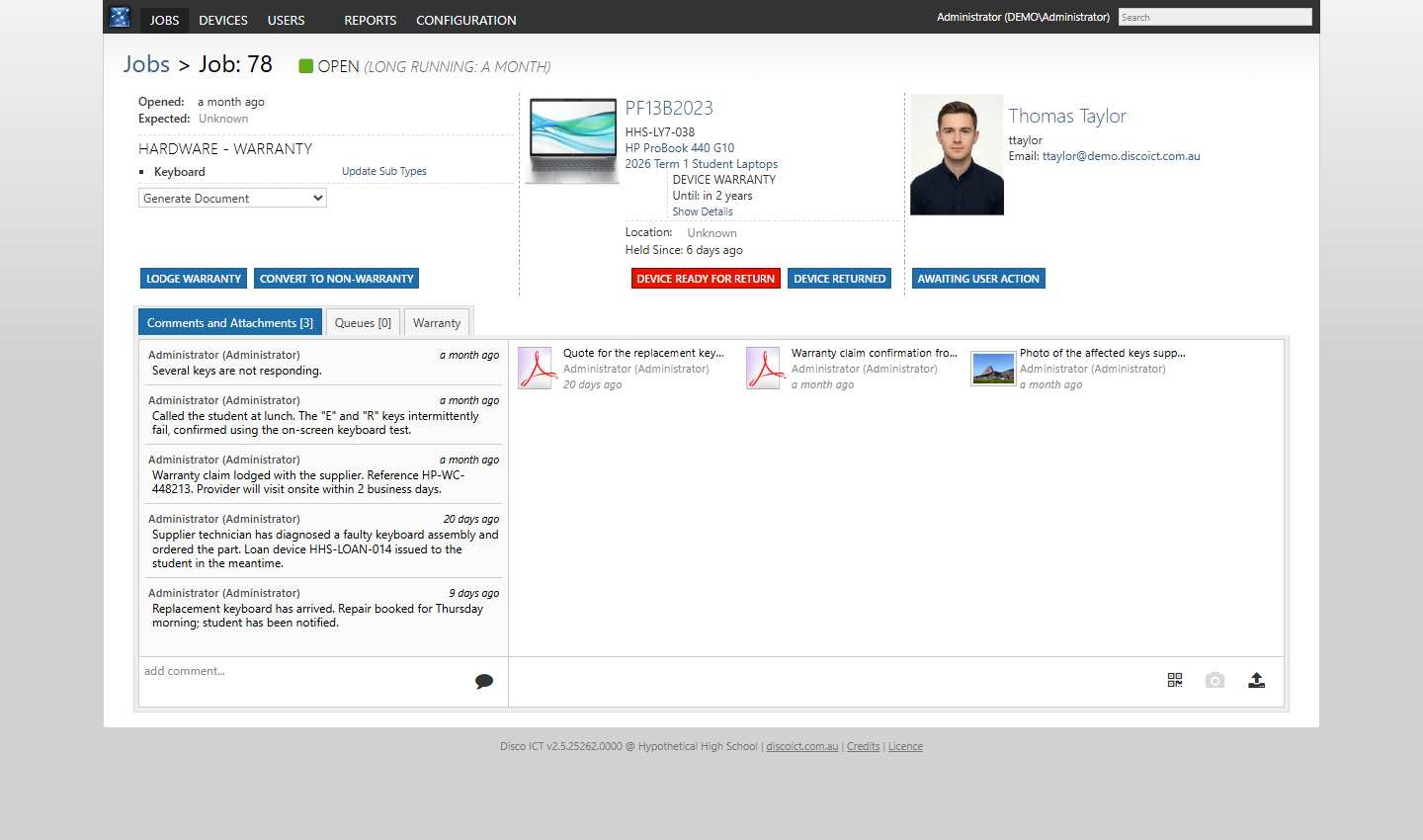
2. Lodge the warranty claim
Choose Lodge Warranty to bring the device and technician details into the claim workflow. Describe the fault, select a repair address and choose the appropriate provider. For a claim handled outside Disco ICT, the manual option lets you record the provider and its job reference.
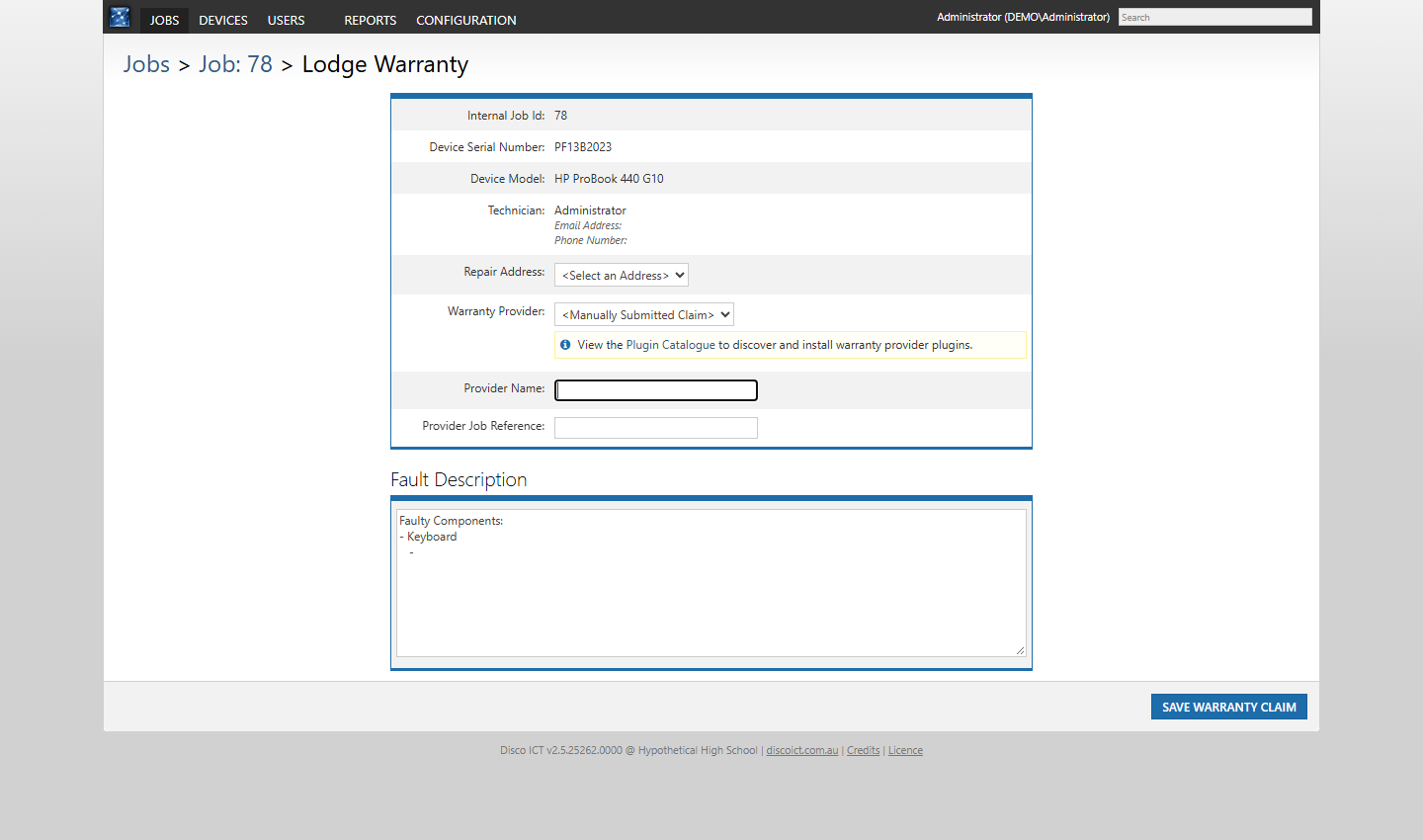
If your organisation installs and configures a suitable provider plugin, the workflow may instead connect with that provider. The plugin catalogue includes integrations for Learning With Technologies and CentreCom Frankston, as well as Email Lodgement for template-based claims. Availability and the exact submission process depend on the plugin and your provider arrangements. Review the details before lodging: an integrated claim can contact an external service or send an email.
3. Track the repair and return
Add updates and supporting files as the supplier responds, and record completion of the warranty work. If the fault turns out not to be covered, the job offers a Convert to Non-Warranty action so the team can follow the appropriate repair process.
After checking the repair and completing any other work, mark the device Ready for Return. Record its return when it is collected and close the job when your organisation’s process is complete. The history remains available to help with future support.