Rolling Out New ICT Devices
A delivery of new laptops is exciting, but getting each one recorded, assigned and ready for its user can take considerable coordination. Disco ICT helps your team prepare the records and policies in advance, then carry that context into ongoing support.
This example describes a Windows device rollout. The exact enrolment steps depend on your network, security policies and the device profile you configure.
1. Prepare the rollout
Create a device batch for the delivery and record details such as supplier, purchase date, warranty and insurance. Choose or configure a device profile for the intended use: for example, a student laptop profile can define whether devices are assigned to individual users and how Active Directory provisioning and computer naming should work.
If you use an imaging workflow, prepare the Windows image with the Disco ICT client bootstrapper. When the device starts, the bootstrapper connects to Disco ICT and begins enrolment. Devices need a suitable network connection to reach the server; wireless profiles and certificates depend on your environment and configuration.
2. Record and assign the devices
Add a device offline using its serial number, with optional details such as asset number, location, batch, profile and assigned user. A barcode scanner can make entering serial numbers from packaging quicker. For a larger delivery, Disco ICT also supports CSV or Excel imports; the serial number is the only required import field.
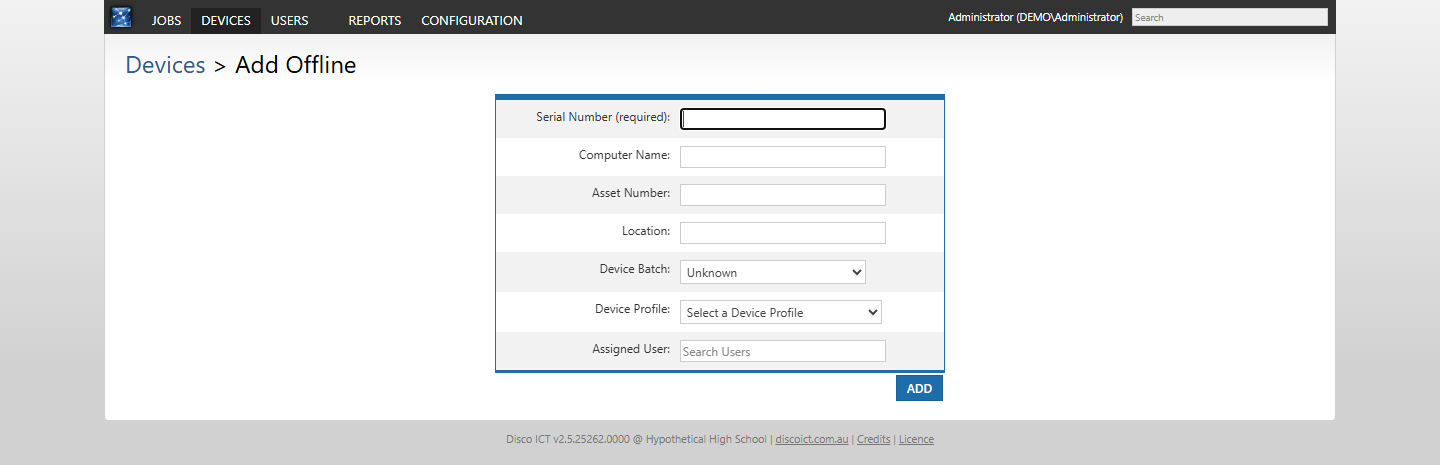
Preparing records before distribution helps the service desk know which devices are expected and who they are for. For one-to-one profiles, enrolment is not considered complete until the device is assigned.
3. Enrol and check progress
Deploy the prepared image and start the devices on a network that can reach Disco ICT. Depending on the profile and installed providers, enrolment can provision an Active Directory computer account, apply a computer naming policy, and provision configured certificates and wireless profiles. The profile can also pre-populate the assigned user at logon or grant local administrator access if your policy calls for it.
Enrolments that are not automatically approved can be reviewed and approved from the enrolment status page. Check device records and enrolment status as the rollout proceeds rather than assuming every device has completed successfully.
4. Support the devices throughout their life
Once distributed, each device record connects its user, batch, profile and service history. Technicians can create jobs with that context already at hand, while batch purchase and warranty information remains available for later support and replacement planning.
Explore Device Management for more on profiles and batches, or User Management for the view from the user’s side.